
If you’ve ever stared at a terminal that says Port 3000 is already in use and felt a small piece of your soul leave your body, this post is for you. Whether you’re running Next.js, a random Node script, or fifteen forgotten npm run dev processes from three weeks ago, learning to manage processes by PID will save you a restart, a Stack Overflow rabbit hole, and possibly your sanity.
Let’s break down what a PID actually is, how to find one, and how to (gracefully or violently) shut it down.
What Is a PID, Anyway?
PID stands for Process ID — a unique number your operating system assigns to every running process. Think of it like a name tag at a networking event, except instead of “Hi, I’m Dave from Marketing,” it’s “Hi, I’m 62311, and I’m hogging port 3000.”
Every app, script, and background service running on your machine has one. Some processes behave. Others linger long after you’ve closed the terminal window, quietly eating memory like it’s an all-you-can-eat buffet.
How to List Running Processes (and Their PIDs)
Before you can kill a process, you need to find it. Here’s how, depending on your operating system.
On Linux/macOS
To see everything running on your machine:
ps aux
This dumps a full list, which is great for browsing but a little much if you’re looking for one specific troublemaker.
For a cleaner list of just PIDs and command names:
ps -e -o pid,comm
For a live, constantly updating view (basically Task Manager for your terminal):
top
or, if you have it installed, the significantly prettier:
htop
Want to search for something specific, like all your rogue Node processes?
ps aux | grep node
On Windows
Command Prompt:
tasklist
PowerShell (if you like your process lists a little more scriptable):
Get-Process
Filter by name:
tasklist | findstr node
Finding a PID by Port Number
Sometimes you don’t care about the process name — you just know something is squatting on a port you need. This is incredibly common with local dev servers.
On Linux/macOS:
lsof -i :3000
This instantly tells you what’s using port 3000 and gives you its PID, no guessing required.
On Windows:
netstat -ano | findstr :3000
The PID shows up in the last column. Cross-reference it if you want a name:
tasklist /FI "PID eq 12345"
How to Kill a Process by PID
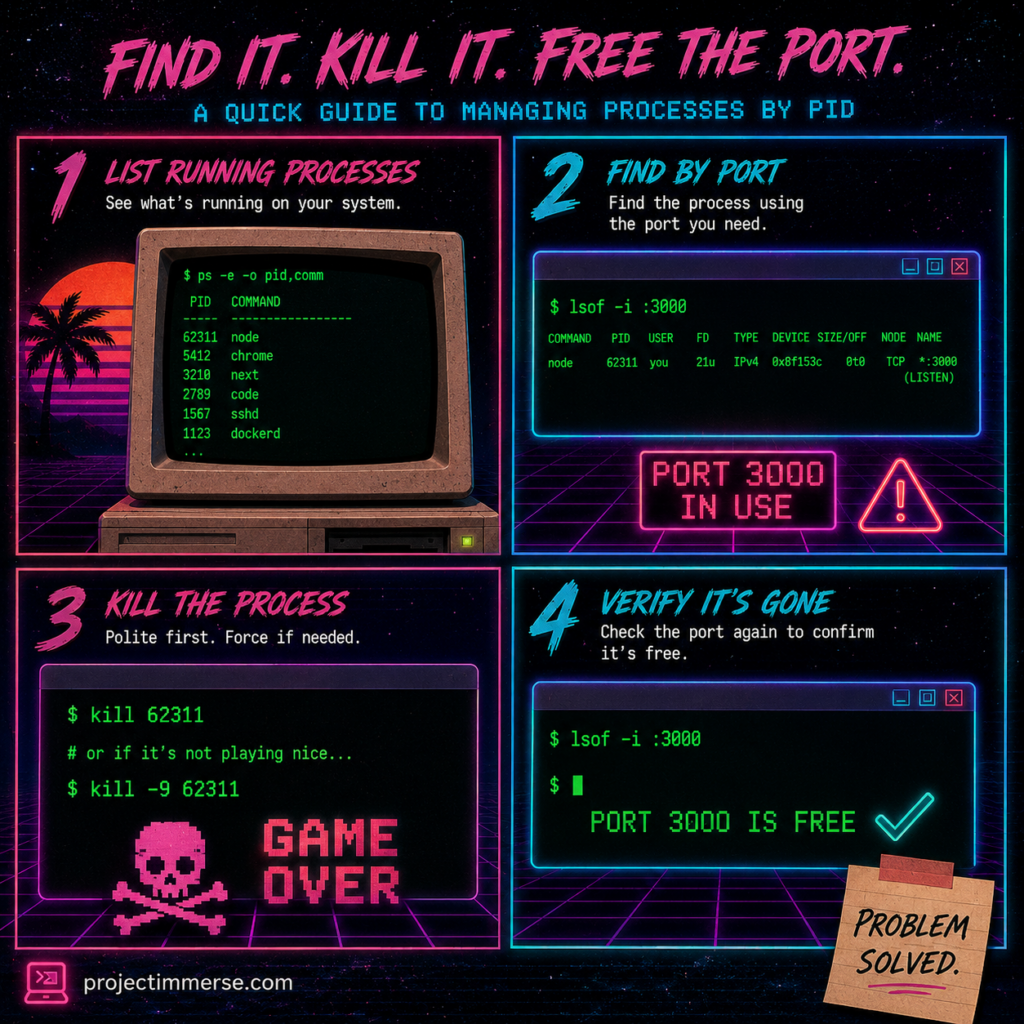
Once you’ve got your PID, ending it is refreshingly simple.
The polite way (sends a termination signal and asks the process nicely to wrap things up):
kill <PID>
The “I have asked twice already” way (forceful, immediate, no negotiations):
kill -9 <PID>
On Windows, the equivalent is:
taskkill /PID <PID> /F
Most of the time, plain kill works fine. Reach for -9 only when a process is being stubborn — kind of like how you ask your dog to get off the couch once, twice, and then just pick it up.
Real-World Example: The Next.js Port Conflict
This scenario is basically a rite of passage for anyone building with Next.js. You run your dev server, and instead of the usual clean startup, you get something like this:
⚠ Port 3000 is in use by process 62311, using available port 3001 instead.
⨯ Another next dev server is already running.

- Local:        http://localhost:3000
- PID:          62311
- Dir:          /Users/you/projects/your-app

You can access the existing server at http://localhost:3000,
or run kill 62311 to stop it and start a new one.
Next.js is doing you a favor here — it’s not just erroring out, it’s handing you the exact PID and the exact command to fix it. All you have to do is listen:
kill 62311
Then restart your dev server like nothing happened:
npm run dev
Want to double-check the port is actually free before you get your hopes up?
lsof -i :3000
No output means the coast is clear.
A Few Handy Extras
- Kill by name instead of PID:
pkill nextorkillall nodewill nuke matching processes without you needing to hunt down a number first. Use with caution — it’s a blunt instrument. - See the process tree:
pstree -pshows parent-child relationships, which is useful when killing one process spawns three zombie children you didn’t know existed. - Kill straight from
htop: pressk, type the PID, done. It’s oddly satisfying.
Wrapping Up
Managing processes by PID isn’t glamorous, but it’s one of those small terminal skills that quietly makes you look like you know what you’re doing — right up there with using cd - to go back a directory or remembering git stash exists. Next time your dev server throws a tantrum about a busy port, you won’t need to restart your whole laptop out of frustration. You’ll just look the PID dead in the eyes and calmly type kill.
Your terminal — and your uptime — will thank you.